

Accelerate Your Julia Code with Effective Profiling Methods
Find Bottlenecks and Elevate Performance Using Generated Functions
This post was written by Steven Whitaker.
In this Julia for Devs post,
we will discuss
using Julia’s Profile standard library
for performance and allocation profiling.
We will illustrate these tools
with example code
and then show how to improve the code.
This post will showcase the powerful techniques we used to significantly accelerate our client’s simulations, resulting in a remarkable 25% reduction in run time of code that was already highly optimized for performance. The impact of these techniques on our client’s work is a testament to their effectiveness and should inspire you in your own projects.
Many new Julia developers face poor code performance, but these techniques can net 10x or even 100x faster run times!
While we won’t be sharing client-specific code, we will provide similar examples that are practical and applicable to a wide range of simulations. This approach should give you the confidence to apply these techniques in your work.
Here are some of the key ideas we will focus on:
- Pinpoint areas of improvement with
Profile.@profile. - Track down allocations with
Profile.Allocs.@profile. - Improve run time and reduce allocations with
@generatedfunctions.
Let’s dive in!
Profiling in Julia
Profiling is a crucial tool for locating performance bottlenecks. This knowledge is invaluable as it guides development efforts to the parts of the code that will have the most significant impact on run time. Understanding this process will keep you informed and in control of your code’s performance.
Here is some example code we will use to illustrate profiling in Julia:
using StaticArrays: SVector

function kernel_original(x::SVector{N}) where N

    y = zeros(N + 1)
    y[1] = x[1]
    for i = 2:N
        y[i] = 0.5 * y[i-1] + x[i]
    end
    y[end] = sum(@view(y[1:end-1]))

    return SVector{N+1}(y)

end

function workflow_original()

    total = 0.0
    for i = 1:100
        x = SVector{10, Float64}(rand(10))
        y = kernel_original(x)
        total += y[end]
    end
    return total

end
The main idea with this example
is that there is a workflow,
workflow_original,
that calls out to a core computation
for many different input values.
To profile this code,
we will use the Profile standard library.
Since Profile implements a statistical profiler,
we need to ensure the code we profile
runs long enough
to reduce the impact of noise in the measurements
(see the documentation for more info).
So,
let’s see how long workflow_original takes
(using BenchmarkTools.jl):
julia> using BenchmarkTools

julia> @btime workflow_original();
  6.410 μs (300 allocations: 25.00 KiB)
6 microseconds is very fast compared to the default profiling sample delay of 1 millisecond. Therefore, we must run the workflow many times to get enough samples. We have found that 1000–5000 samples are usually plenty for identifying performance bottlenecks, though slower code will likely need more samples and/or a larger sample delay.
So, to get approximately 1000 samples, we will need to run the workflow \( 1000 \cdot \frac{1 \mathrm{ms}}{0.006 \mathrm{ms}} = 166,667 \) times. We’ll round up to 200,000 for good measure.
Let’s see how to profile the code:
julia> using Profile

julia> Profile.clear()

julia> workflow_original();

julia> Profile.@profile for _ in 1:200_000 workflow_original() end
A couple of notes:
- The
Profile.clear()step is not strictly necessary. However, a habit of always clearing the profile data ensures one doesn’t inadvertently spoil their profiles with old data from previous profiling results. - We called
workflow_originalonce before profiling to avoid profiling JIT compilation.
Now we want to display the profile data.
One way is via Profile.print,
which prints a textual representation
of the profile to the console,
but this isn’t the most efficient method
for inspecting the data.
Typically,
profile data is visualized
using a flamegraph.
The Profiling docs list several packages for visualizing profiles. We will use ProfileCanvas.jl, which creates an HTML file we can view in a web browser and interactively inspect the profiling results:
julia> using ProfileCanvas

julia> ProfileCanvas.view()
This code creates and displays a flamegraph:
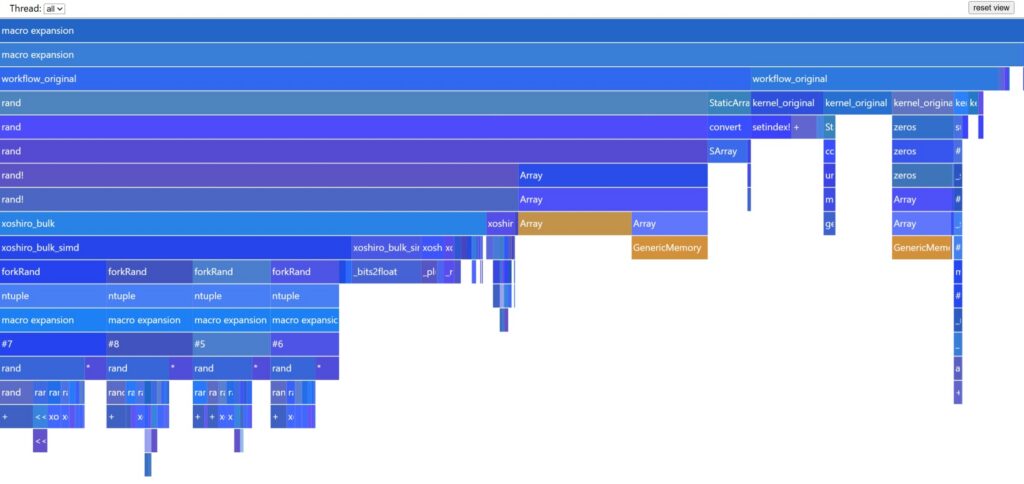
One thing that stands out in this flamegraph is the three yellow rectangles. These indicate occurrences of garbage collection (GC), which implies the code allocated memory. Since these yellow blocks represent a decent portion of the run time (as indicated by the width of the rectangles), let’s investigate.
Allocation Profiling
We will use Julia’s allocation profiling tools to further inspect the allocations we know the workflow has. The process is similar to performance profiling, with the following differences:
- We will use
Profile.Allocs.@profileand pass the optionsample_rate = 1.0to record all allocations. In a larger workflow with many more allocations, a smallersample_rateis advised (the default value is0.1). - We will run the workflow just one time.
- We will visualize the results with
ProfileCanvas.view_allocs.
Here’s how to profile allocations:
julia> using Profile, ProfileCanvas

julia> Profile.Allocs.clear()

julia> workflow_original();

julia> Profile.Allocs.@profile sample_rate = 1.0 workflow_original();

julia> ProfileCanvas.view_allocs()
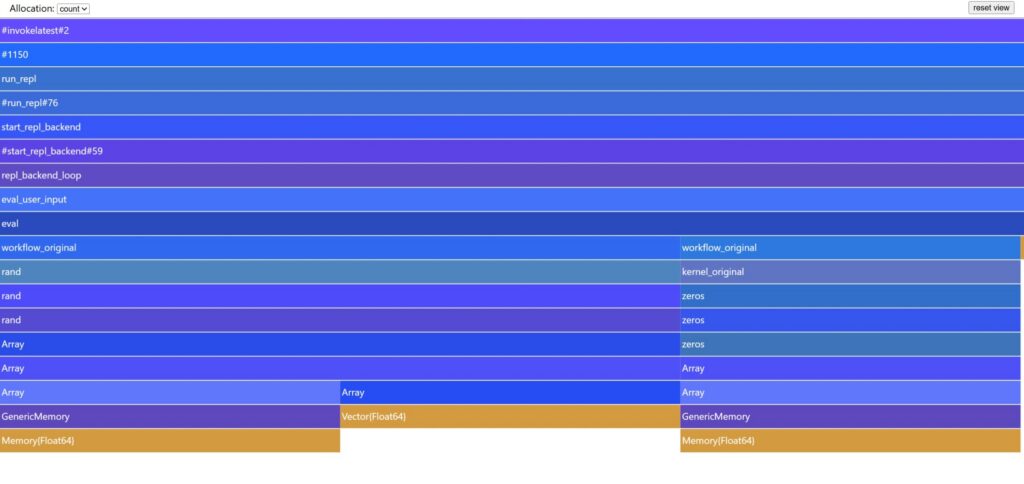
In this flamegraph, the widths of each rectangle correspond to how many allocations were made. In this example, each yellow block is the same width, meaning they all contributed the same number of allocations.
Now we need to determine whether we can do anything about these allocations.
Moving up from the bottom of the flamegraph
lets us trace the call stack
to see where these allocations came from.
For example,
we can see that GenericMemory
was called from Array,
which itself was called from Array,
and so on.
Eventually,
we get to workflow_original.
If we hover our mouse cursor over that block, it will display the file and line number:
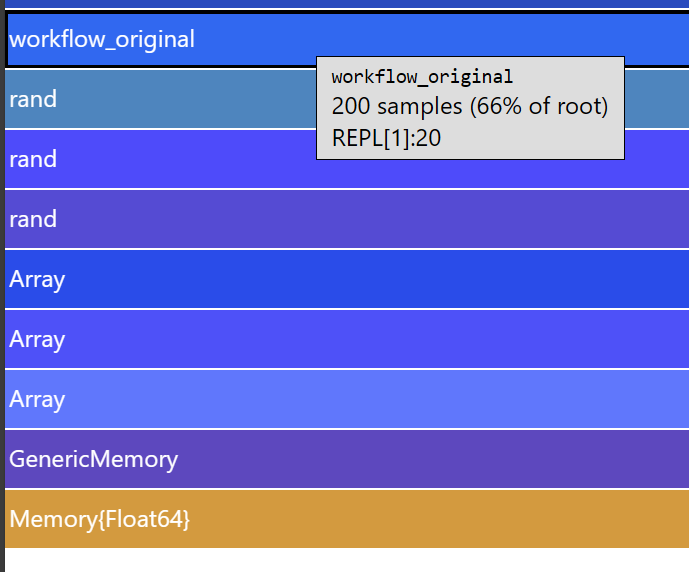
(In this case,
I defined workflow_original
in the first REPL prompt
of a fresh Julia session,
so that’s why REPL[1] shows up for the file name.)
Looking at these profile results shows us that the offending lines are:
x = SVector{10, Float64}(rand(10))(inworkflow_original)y = zeros(N + 1)(inkernel_original)
This makes sense;
in each of these lines,
we explicitly create an array
(via rand and zeros),
which allocates memory.
But it turns out we can eliminate these allocations!
Eliminating the first allocation
requires knowledge
of the StaticArrays.jl package.
In particular,
the @SVector macro
can create an SVector
directly from standard array expressions
(like rand)
without allocating memory.
So,
instead of using the SVector constructor,
we can write:
x = @SVector rand(10)
The second allocation, however, is a bit trickier to remove.
Reducing Allocations with @generated Functions
What makes it difficult
to remove the allocation
in kernel_original
is the elements of the vector y
depend on previous elements
of the vector.
That means we have to compute one element
to compute the next,
which means we have to store that element somehow.
If we knew exactly how long y would be,
we could store the computations
in local (scalar) variables.
However, the function needs to work with any input size;
we don’t want to create a separate method
for each possible input size.
At least, not by hand.
It turns out
Julia can automate
the creation of these specialized methods.
The trick is to use the @generated macro.
A method annotated with @generated
uses type information
to produce specialized implementations
of the method
depending on the input types.
And since type information is available at compile time,
this specialization occurs at compile time,
leading to run time improvements.
Using a @generated function
to replace kernel_original
will allow us to, essentially,
move the run time allocation
to compile time.
Here’s what the new function looks like:
@generated function kernel_generated(x::SVector{N}) where N

    assignments = [:(y1 = x[1])]

    for i = 2:N
        yprev = Symbol(:y, i - 1)
        yi = Symbol(:y, i)
        push!(assignments, :($yi = 0.5 * $yprev + x[$i]))
    end

    yend = Symbol(:y, N + 1)
    sum_expr = reduce((a, b) -> :($a + $b), (Symbol(:y, i) for i = 1:N))
    push!(assignments, :($yend = $sum_expr))

    vars = ntuple(i -> Symbol(:y, i), N + 1)

    return quote
        $(assignments...)
        return SVector{$(N + 1), Float64}($(vars...))
    end

end
The first thing you might notice,
especially if you are unfamiliar with metaprogramming,
is that this function looks quite different
from kernel_original.
So, let’s unpack this a bit:
- A
@generatedfunction needs to return an expression. The compiler will then compile the code resulting from the expression. Finally, at run time, the compiled code will be used, not the code used to generate the compiled expression. In other words, this function must return the specialized code itself, not the result of a run time computation. - The returned expression
is created with a
quoteblock. Thisquoteblock interpolates (using$) expressions built up earlier in the function. The computations to build up these expressions occur only at compile time.
If we want to inspect
what the generated function looks like,
we need to refactor the code just a bit.
Essentially,
we’ll create a regular Julia function
that returns an expression,
and the @generated function
will just call that function:
function _gen_kernel_generated(::Type{<:SVector{N}}) where N
    # Same code as `kernel_generated` above.
end

@generated kernel_generated(x::SVector) = _gen_kernel_generated(x)
Then we can call _gen_kernel_generated directly
to see what code actually runs:
julia> _gen_kernel_generated(typeof(@SVector rand(1)))
quote
    #= REPL[2]:18 =#
    y1 = x[1]
    y2 = y1
    #= REPL[2]:19 =#
    return SVector{2, Float64}(y1, y2)
end

julia> _gen_kernel_generated(typeof(@SVector rand(2)))
quote
    #= REPL[2]:18 =#
    y1 = x[1]
    y2 = 0.5y1 + x[2]
    y3 = y1 + y2
    #= REPL[2]:19 =#
    return SVector{3, Float64}(y1, y2, y3)
end

julia> _gen_kernel_generated(typeof(@SVector rand(3)))
quote
    #= REPL[2]:18 =#
    y1 = x[1]
    y2 = 0.5y1 + x[2]
    y3 = 0.5y2 + x[3]
    y4 = (y1 + y2) + y3
    #= REPL[2]:19 =#
    return SVector{4, Float64}(y1, y2, y3, y4)
end
Yep, the implementation looks right!
We can also see
that the generated code
avoids creating an array
to store intermediate results,
instead storing computations
in local variables.
But we didn’t have to write
any of those methods ourselves!
Using @generated allows us
to maintain just one function
to generate all these specialized implementations.
Let’s benchmark the new implementation:
julia> @btime workflow_generated();
  1.093 μs (0 allocations: 0 bytes)
Nice, six times faster and no allocations!
And here’s the profile:
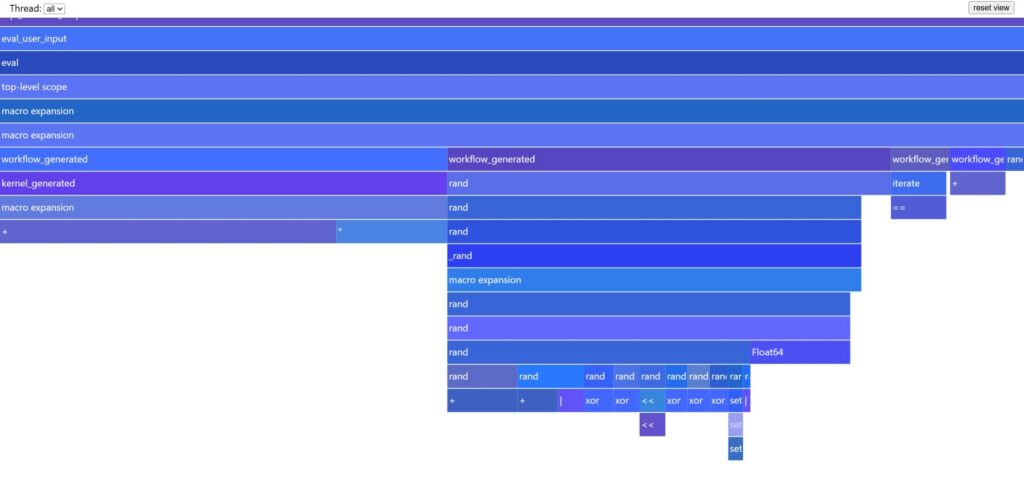
And here’s the code for profiling:
using StaticArrays: @SVector, SVector

@generated function kernel_generated(x::SVector{N}) where N

    assignments = [:(y1 = x[1])]

    for i = 2:N
        yprev = Symbol(:y, i - 1)
        yi = Symbol(:y, i)
        push!(assignments, :($yi = 0.5 * $yprev + x[$i]))
    end

    yend = Symbol(:y, N + 1)
    sum_expr = reduce((a, b) -> :($a + $b), (Symbol(:y, i) for i = 1:N))
    push!(assignments, :($yend = $sum_expr))

    vars = ntuple(i -> Symbol(:y, i), N + 1)

    return quote
        $(assignments...)
        return SVector{$(N + 1), Float64}($(vars...))
    end

end

function workflow_generated()

    total = 0.0
    for i = 1:100
        x = @SVector rand(10)
        y = kernel_generated(x)
        total += y[end]
    end
    return total

end

using BenchmarkTools
@btime workflow_generated();

using Profile, ProfileCanvas
Profile.clear()
Profile.@profile for _ in 1:200_000 workflow_generated() end
ProfileCanvas.view()
Note, there’s no need for allocation profiling because there are no allocations.
There aren’t any obvious places for improvement, so I’d say we did a pretty good job optimizing the code.
Summary
In this post,
we saw how to use the Profile standard library
to profile the run time
and the allocations
of a piece of code.
We also illustrated
how a @generated function
can eliminate run time allocations
and speed up the code.
These were key ideas we used
to help one of our clients
speed up their simulations.
Do you need help pinpointing performance bottlenecks or tracking down allocations in your code? Contact us, and we can help you out!
Additional Links
- Profiling in Julia
- Julia manual section on profiling.
- Metaprogramming in Julia
- Julia manual section on metaprogramming,
including
@generatedfunctions.
- Julia manual section on metaprogramming,
including
- GLCS Modeling & Simulation
- Connect with us for Julia Modeling & Simulation.